
It looks like it is that time. Time for me to pull out my nerdy geek girl glasses, crack my knuckles, stretch out my typing fingers, put on my “thinking cap” (though I swear Alissa calls it my “dunce cap”)…it is time to get technical. So pull up a comfy chair, grab some snacks, and your favorite beverage. You are about to go into the mind of Bunny as I show you some tips and tricks of the technical nature.
In this post, we are going to touch on Flickr. A location where YOU can upload and share your photos with us and other players of Family Guy: The Quest For Stuff. It is a fun way to show off your progress, town designs, and silly moments you caught in the game while playing through. To start out, you need a Flickr account.
Head on over to http://www.flickr.com/

This part is quite simple. Just like any other site you basically set up an email, password, and a few bits of information. You will be greeted on the site by a BIG button that says, “Sign Up for Flickr”, click that button. 
If you already have a Yahoo account, you can actually use that as your log in for the site. You also have the choice to link it to your Gmail and Facebook Account. The choice is really yours.
If you do not have Yahoo and want to use it, you can just click on the “Create New Account” option and follow the steps to create your own. That’s pretty much it. A few questions and you are in. 
Now just a quick few things while you are in there. Now would be a good time to join our Flickr group. In the menu options along the top, you will see “Communities”. If you highlight over this, the drop down menu will open. Select “Search Groups”. Type in “Family Guy Addicts” and then select search. You now can go to our page and “Join Group”.
This will come in real handy when sharing pics with us. Or you can use our direct link to our feed. https://www.flickr.com/groups/familyguyaddicts/ 
Also you will notice in the far upper right hand corner a small icon (it is usually a camera when you first open your account until you change the picture). When you select it, you will see your personal options. “Settings” is where you can go to make additional changes to your account. 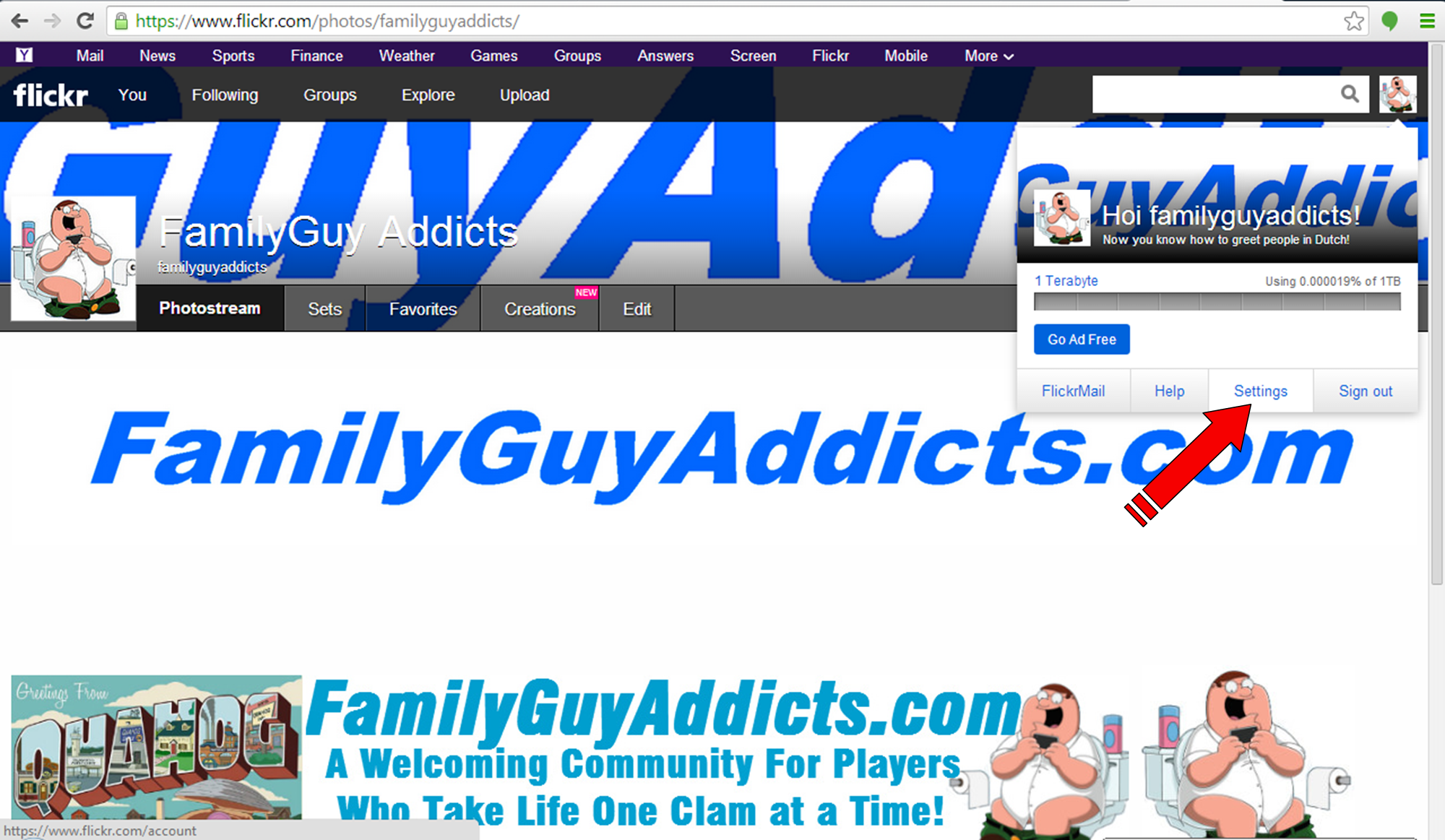
Feel free to play around a little. Check out all the menus. Set up your page just the way you like it. Edit your personal information. Just customize it to fit you and the settings you want. 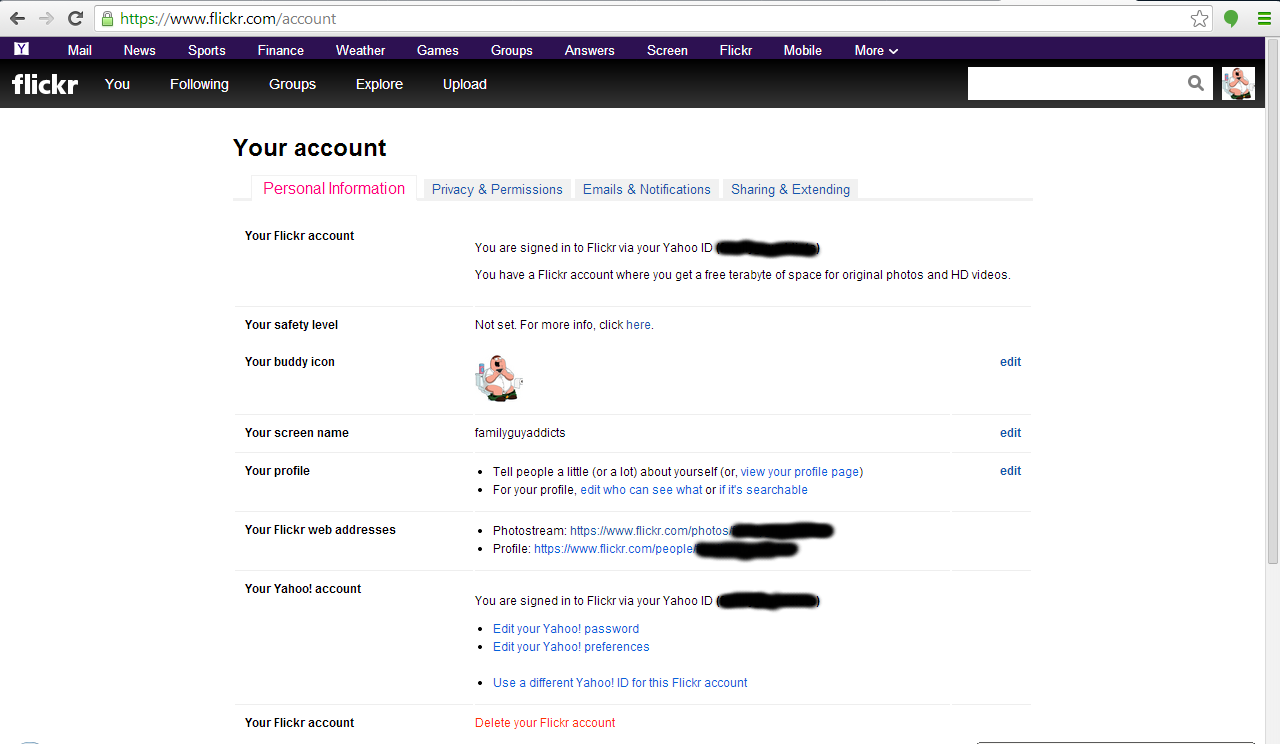
That is pretty much it. You now have a Flickr account.
Now for setup for your mobile device. (I have an Android device, but the Apple products are very similar too in set up.) I begin by going into the Google Play Market and searching for “Flickr”. 
Pick the Yahoo! Inc. Flickr. (You will notice the lil pink n blue dots) 
Once I open the app, The option to Install Flickr is right up at the top right. It is just a matter of a simple tap, accepting the accessibility options, and waiting for it to download and install to your device. (It also installed a shortcut button to my device for one tap access.)

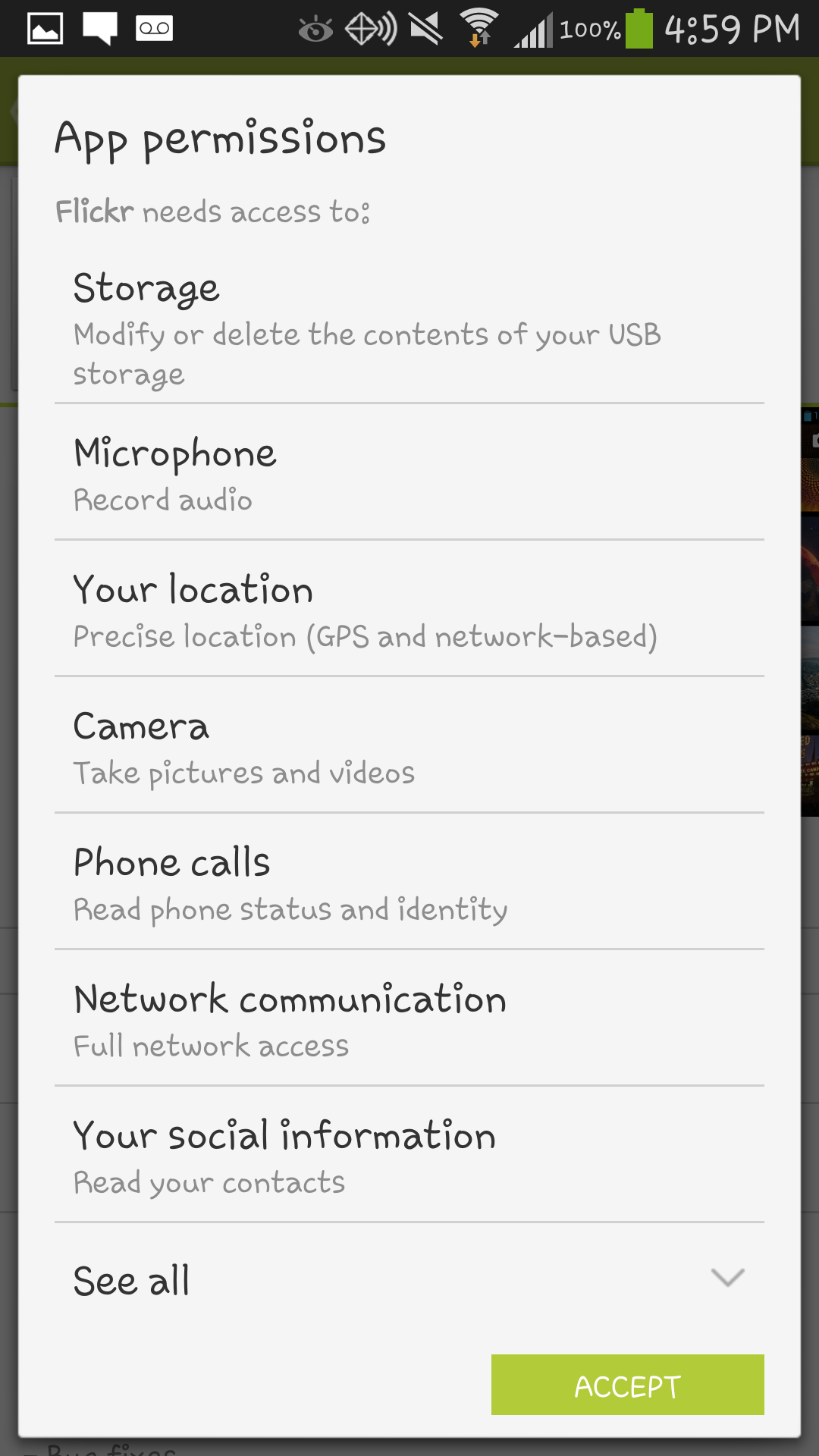
Took mine about 20 seconds, but each device will vary depending on your signal strength and available memory space. Then I am able to open the app. Similar to the desktop option, you are able to sign in using your Yahoo account, create a Yahoo account, Google, or Facebook.


Now you are able to access your Flickr account from your mobile device for easier access and uploading.
Let us know if this helped YOU. Sound off in the comments below. As usual, always feel free to reach out to us if you have any questions. Here to help all we can.
Until Next Time

~Bunny





 Family Guy Addicts
New update in the google play store dont know about ios only have android thought you should know
LikeLike
Thanks. We are actually looking through the data to see all the changes. Will post when we have all the info. 😉
LikeLike